Thursday, November 3, 2022

SnTT - Which Database has an FTI?


Earlier this year, Martin Vogel and I gave a session at Engage titled "Teaching Young and Old Dogs New  Tricks: Notes & Domino Shortcuts You Wish You Knew," It was a great session with a filled capacity of the room.

But I was neglectful; I had planned to post some essential tips in my blog at the time but did not get to it. I will try to make up for it over the next few weeks.

The first one that not everyone may know about is how to find out which databases have a FTI, Full Text Index.

Here is the scenario:

You are asked to build new servers for your customer or organization and while looking at the old server, notice some indexing on some databases. This causes you to think, how do I find out which databases have an FTI so they can be rebuilt on the new server?

Good question, right?

I will first provide an answer for anyone not on R12 and then post the R12 way.

Pre R12 FTI Details for any given Database

  1. Open the catalog.ntf in the designer client
  2. Open the Views List
  3. Edit the Applications\by Server view
  4. Insert a column where you want it, and name it FT Index
  5. Change the field for this new column to DbFullTextIndexed
  6. Set the column to sort both ways
  7. Save your changes
  8. Replace the design of your catalog.nsf

NOTE: This presumes all your databases are set to show in the catalog.nsf, so not 100% foolproof

The R12 way to see FTI Details for all Databases on Your Server
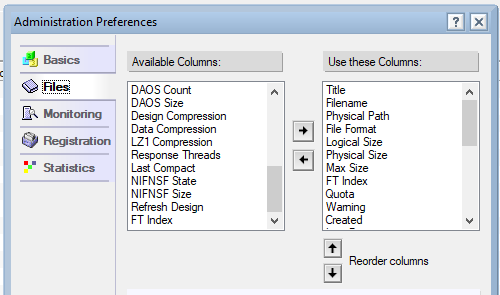
Open the Administrator client
Go to the Files tab
Click on File-Preferences-Administration Preferences
Select the Files Tab
Add the FT Index (see screenshot below, FT Index is the last one in the list)
Reorder the column location, or it may end up in the 27th column
Restart the Administrator client to see the change

If you need it, you can copy and paste the full view into Excel if that helps you track what you are doing.


Pretty cool if you ask me that this got added in R12. I had asked for it in an Aha request, and it got done, so Aha is listened to by HCL, here is the link to that request:

It was the first item added to the column list since before R9 at least.

Thursday, October 27, 2022

How to Enable, or Disable, TOTP for HCL Traveler and Verse

 After a discussion with fellow HCL Ambassador David Hablewitz, I realized I did not fully explain the HCL Traveler/Verse (will just refer to it as Verse) and TOTP  issue in my blog post the other day, 

I intended to explain the pros and cons of using TOTP and Verse, but I neglected to explain how to enable or disable TOTP and what you do if you have one server or separate servers.

The how-to is what this post is about.

It is pretty easy to do in a proper environment where Verse sits on its own server.

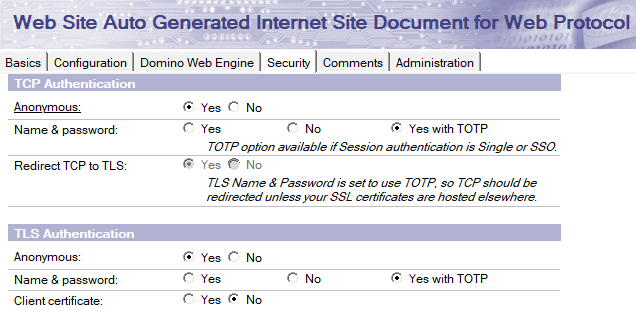
You probably see something similar to this in your Internet Sites for the Verse server (ignore the 404 error page I was testing):


If you double-click on the head item on the Web Site, you will see where you turn TOTP on or off. I am presuming you have set TOTP up already. The option is there because of the names.ntf template changes in R12 and R12.0.1.


If you don't want TOTP, change the selected option to "Yes" instead of "Yes with TOTP."

Simple, right? 

What if you are a smaller organization that relies on one Domino server to do anything and everything? What if you don't want Verse to have TOTP, but access to applications, or mail, should have TOTP?

My suggestion from a security perspective is to create a new URL for Verse. It is easier, under R12, for you to create a unique URL for your domain and get a Let's Encrypt SSL certificate for it for free.

Sidenote: I understand that you could leave it set up as it is above and turn TOTP off for the default website. You may do this because you don't want to field tons of help desk calls from users who can't change a URL, but this route would leave your whole server in a less secure mode.

Decide on the new URL, traveler.company.com.Set it up in your internal and outside DNS.

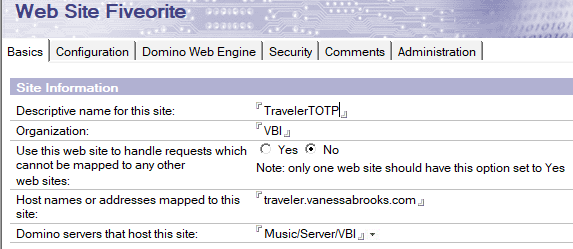
Create the new Internet Site document for the unique domain. It may look something like this:


Don't forget to edit your Traveler URL section of the server document to accommodate this change.

And now you can restart HTTP and Traveler, and you should get prompted for TOTP at your domain, but not with Verse once outside DNS changes go into effect. So I suggest you set it up and wait till the exterior works, then cutover internally.

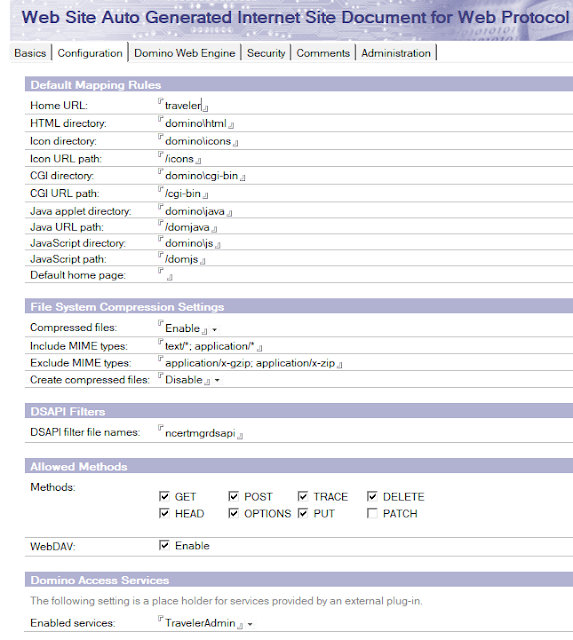
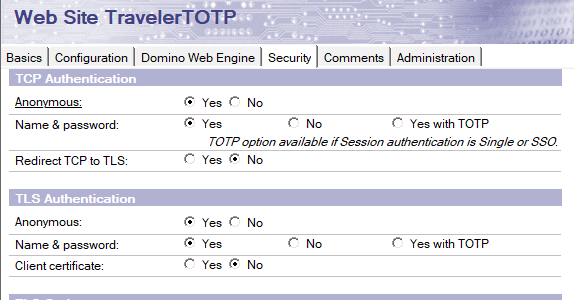
You will need to create all the docs, so it looks like this:


And users may have to reinstall Verse to change the URL.

Once set up, you can turn on TOTP for Verse down the road if you wish. This also lets you move the Verse server easier in the future because it is no longer tied to your server, just the URL.